Cancel an invocation
Canceling an invocation stops a running build or test. You can cancel a single invocation from its details page, or cancel one or more directly from the Invocations page.
The UI shows a single Running status for an invocation both while it is queued and while it is executing. This guide uses "running" to mean either, matching what the UI shows.
Cancel one invocation
From the invocation's details page:
- Open the invocation's details page.
- While the invocation is running, click the actions menu (the vertical three-dot icon) at the right end of the title row.
- Select Cancel invocation.
From the Invocations page:
- Open the Invocations page.
- Find the running invocation's row.
- Click the row's actions menu (the vertical three-dot icon).
- Select Cancel invocation.

Confirm the cancellation
A confirmation dialog asks:
Are you sure you want to cancel this invocation?
Note: Once canceled, this invocation cannot be restarted.
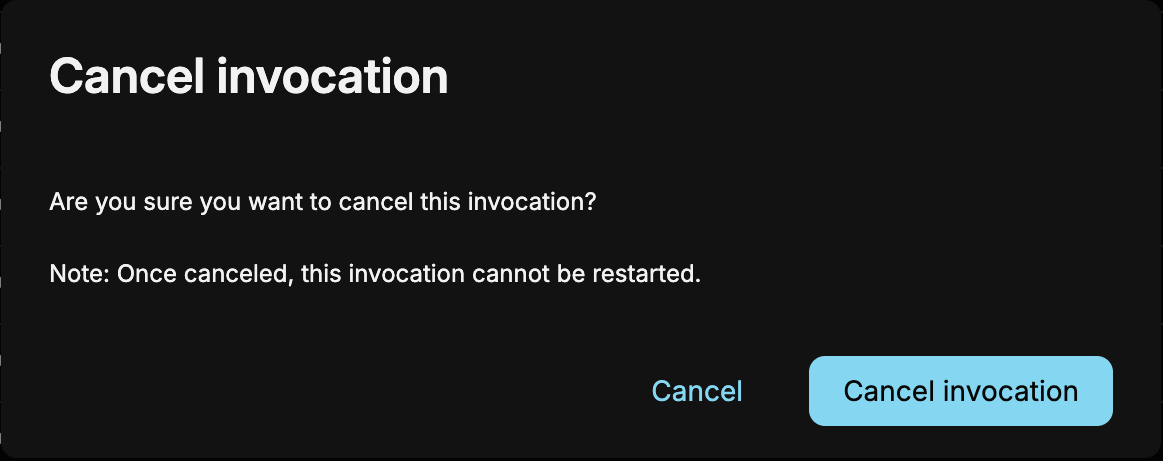
Cancellation is permanent; confirm only if you are certain you want to proceed. Otherwise, close the dialog without confirming.
Cancel multiple invocations at once
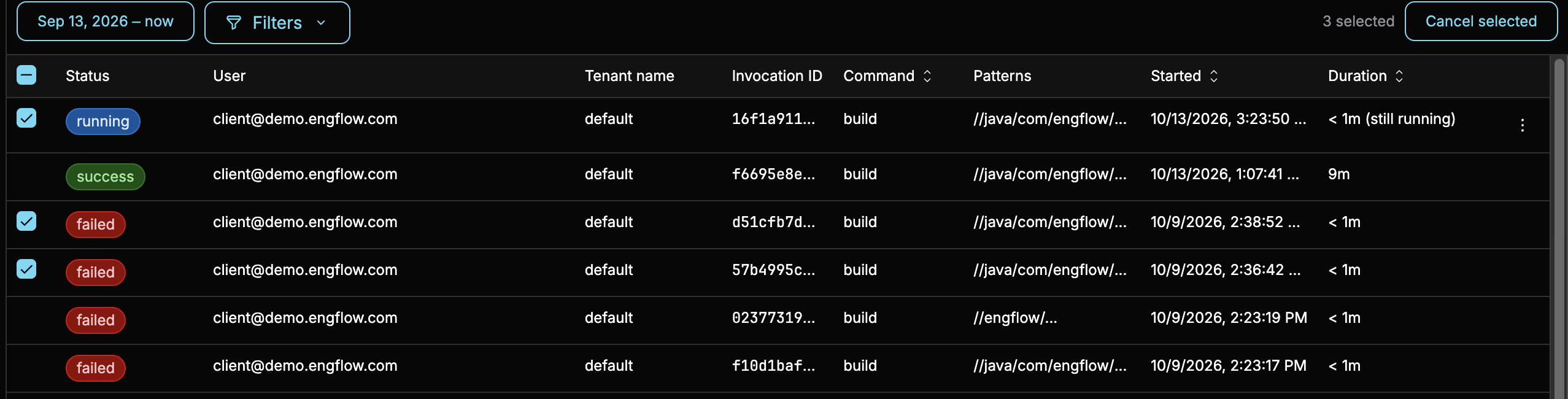
You can select and cancel several running invocations together from the Invocations page:
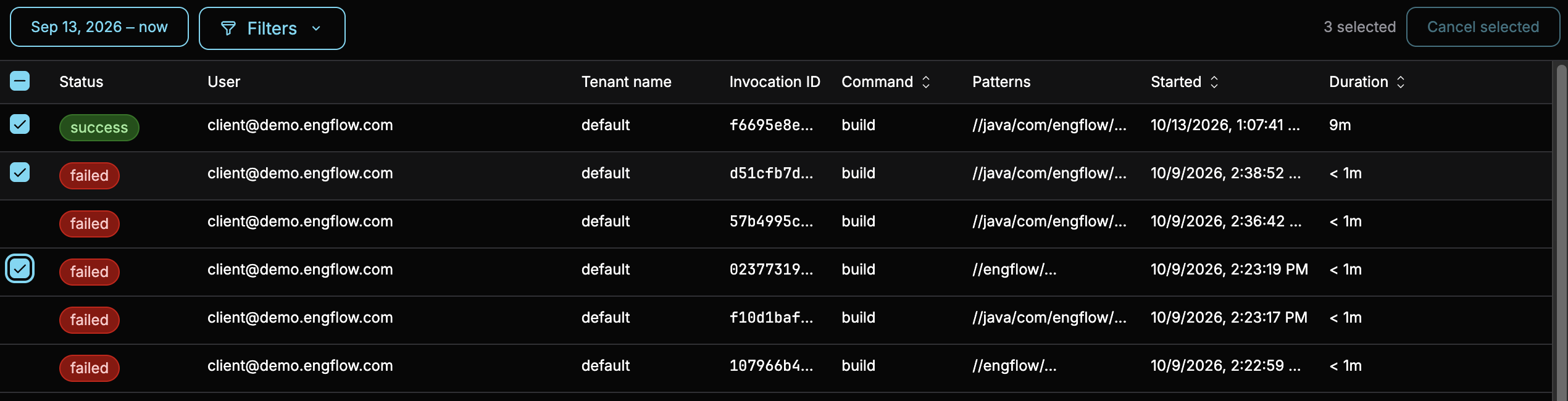
- Select the invocations you want to cancel using the checkbox on each row. The checkbox in the column header selects or clears every row currently on the page.
- Once you select at least one running invocation, click the newly visible Cancel selected button to open the confirmation dialog.
Note
Selection only covers the rows currently loaded on the page. There is no way to select every invocation that matches a search across all pages. The Cancel selected button is enabled as soon as at least one selected invocation is running, and stays disabled if everything you selected has already finished.
Tip
To cancel as many invocations as possible at once, set Rows to 100, the maximum page size, before using the checkbox in the column header to select every row on the page.
When some selected invocations have already finished
If your selection mixes running and already-finished invocations, the confirmation dialog adds a line such as:
Only 2 of the 5 selected invocations are running and will be canceled.
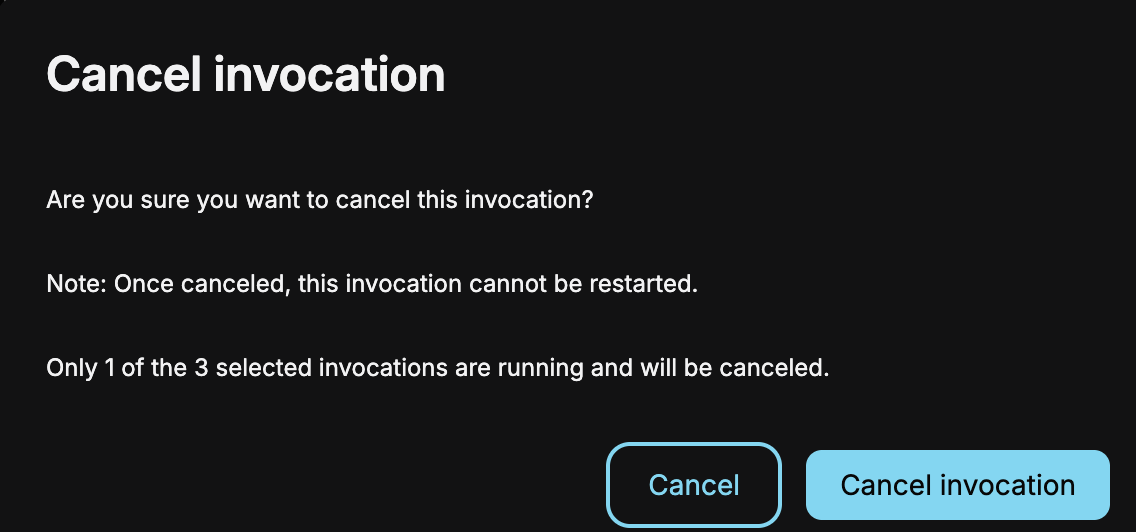
Confirming cancels only the invocations that are still running. The already-finished invocations in your selection are left as they are.
After you cancel
Confirming closes the dialog immediately. The UI does not show an on-screen success or failure message, so you can't rely on the dialog itself to tell you whether the cancellation succeeded. Instead:
- Watch the invocation's status to see whether it stops.
- New build or test requests targeting the invocation are rejected for about an hour.
Note
A canceled invocation does not currently get its own "Canceled" status label in the UI. It falls into the generic "Unknown" status instead.
If cancellation fails
Cancellation can fail if your session has expired or you no longer have permission to run actions for that invocation.
Warning
The UI gives no indication when cancellation fails. The dialog closes the same way either way. The only way to notice is that the invocation keeps running past when you expect it to stop. If that happens, confirm you're still signed in, then try canceling again.